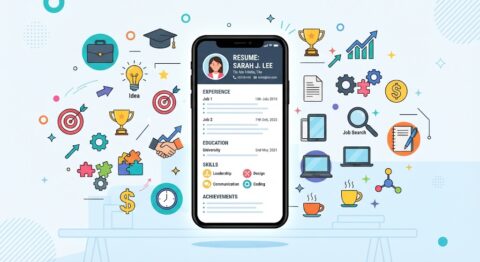
7 Proven Steps: How Do I Create a CV on My Phone Like a Professional
Wondering how do I create a CV on my phone without sacrificing professional quality? In today’s hyper-mobile job market, you no longer need a desktop computer to land your dream interview. Armed with the right tools and a streamlined workflow, your smartphone can become a powerful career-building command center. Whether you are commuting, traveling, or simply away from your laptop, optimizing your career documentation on the go is entirely achievable.
Before diving into the exact workflow, let us review the core takeaways you will master in this guide:
* Selecting mobile-friendly document apps and clean, ATS-compliant layouts.
* Structuring your professional summary, experience, and key skills efficiently on a small screen.
* Formatting file exports to PDF to prevent layout distortions across different mobile operating systems.
* Avoiding common mobile editing pitfalls that trigger hiring manager red flags.

Choosing the Right Mobile Applications and Cloud Ecosystem
The foundation of successful mobile CV creation relies entirely on application selection. Avoid clunky text editors that scramble fonts or alter margins when switching views. Instead, opt for dedicated cloud-based suites like Google Docs, Microsoft Word Mobile, or specialized resume builders optimized for iOS and Android. These platforms ensure your document formatting remains intact and syncs seamlessly across all your devices.
When setting up your file, always choose a clean, single-column template. Multi-column designs often confuse automated Applicant Tracking Systems when viewed or parsed from mobile apps. Utilizing reliable tools helps maintain structural integrity. For comprehensive software benchmarks and mobile productivity insights, you can review Indeed’s mobile resume creation guide for additional external perspectives.
Optimizing Your Layout for How Do I Create a CV on My Phone Success
Typing on a smartphone keyboard can be tedious, so efficiency is your best friend. Start by drafting your text in a separate notes app using voice-to-text dictation to draft your professional summary and job descriptions rapidly. Once your raw text blocks are ready, paste them into your structured template. Ensure your font size stays between 10 to 12 points for body paragraphs and 14 to 16 points for headings to guarantee readability on any recruiter screen.
Furthermore, keeping your document concise is vital when editing on a mobile display. A mobile screen can deceive your perception of length, making a two-page document look deceptively short. Stick strictly to a single page if you have under five years of experience, prioritizing impact-driven bullet points over lengthy paragraphs. Integrating an internal resume keyword checklist can also guide your editing process directly from your mobile device.
Drafting High-Impact Content and Formatting Sections on Mobile
Crafting compelling content requires absolute clarity, especially when working on a compact display. Organize your CV into standard, highly recognizable sections: Contact Information, Professional Summary, Work Experience, Education, and Skills. Each section must be clearly separated by bold headings so hiring managers can scan your credentials in under six seconds.
In your experience section, utilize action verbs and quantify your achievements with metrics whenever possible. Instead of writing generic statements like managed projects, write spearheaded cross-functional projects that increased operational efficiency by 25 percent. Mobile apps with spell-check and grammar extensions will help you catch typos instantly before you finalize the document export.
Avoiding Common Mobile CV Editing Mistakes and Formatting Red Flags
Creating a resume on a mobile phone introduces unique challenges that can easily trigger recruiter rejection if ignored. One major pitfall is saving the file in an incompatible format like Pages or raw Word document formats that shift alignment on desktop computers. Always export your finished masterpiece as a clean PDF document.
Another frequent error is omitting a final proofreading pass on a larger screen. Always preview your exported PDF by emailing it to yourself or opening it on a tablet or desktop monitor to ensure margins, spacing, and bullet points render correctly. Watch this informative video breakdown for visual guidance on mobile resume formatting techniques.
Learn how to optimize your mobile resume layout and avoid common ATS pitfalls:
Frequently Asked Questions About Mobile CV Creation
Can I build an ATS-friendly CV entirely on my smartphone?
Yes, absolutely. As long as you use a clean, single-column template without complex graphics, tables, or text boxes, mobile document creators produce fully ATS-compatible PDF files.
What is the best file format for sharing a mobile-created CV?
Always export and share your CV as a standard PDF (.pdf) file. This locks your formatting in place and prevents any unwanted text shifting across different operating systems.
Which mobile apps work best for resume building?
Google Docs, Microsoft Word Mobile, and Canva offer robust mobile apps equipped with professional templates and reliable cloud export features.



Leave a Reply