
How to Create a CV on iPhone in 2027: The Ultimate Step-by-Step Guide
In today’s hyper-competitive job market, speed and agility are often just as important as your actual qualifications. Knowing exactly how to create a cv on iphone can give you a massive competitive advantage when an unexpected job opportunity arises.
Imagine sitting on a train, scrolling through professional networks, and spotting the perfect open role that was posted just five minutes ago. If you wait until you get home to your desktop computer, hundreds of applicants may have already flooded the Applicant Tracking System (ATS).
You need to act fast. By utilizing the powerful pocket-sized computer you already carry every day, you can craft, format, and export a flawless, ATS-friendly resume in mere minutes.
Modern iOS devices offer incredibly robust word processing capabilities that rival traditional desktop software. From the native Apple Pages application to third-party industry giants like Microsoft Word and Google Docs, the ecosystem is fully equipped for professional document creation.
This comprehensive masterclass will walk you through the exact blueprint for building a stunning resume directly from your smartphone. You will learn the hidden HR secrets to ensuring mobile-generated files pass automated screenings effortlessly. Let us dive into the ultimate guide to mastering your mobile career toolkit.
Quick Summary and Key Takeaways for Mobile CV Creation
Before we dive into the technical steps, it is vital to understand the overarching strategy of mobile resume building. Mobile document creation is not just a backup plan; for many modern professionals, it is the primary method of career management.
The goal is to maintain absolute professionalism while leveraging the convenience of a touchscreen interface. You do not want to sacrifice layout quality, font readability, or keyword density simply because you are using a smaller screen.
Here are the core takeaways you will master by the end of this comprehensive guide:
- Choose the Right Software: Utilizing Apple Pages, Google Docs, or Microsoft Word for iOS ensures flawless formatting and easy PDF exporting.
- Preparation is Power: Leveraging the Apple Notes app to draft your bullet points before pasting them into a document template saves incredible amounts of time.
- ATS Compliance: Understanding why you must always export your final mobile creation as a PDF to preserve data integrity and pass bot screenings.
- File Management: Using the native iOS Files app and iCloud Drive to safely store, rename, and instantly attach your resume to job applications.
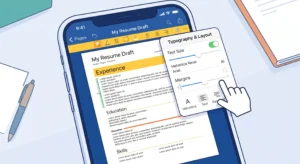
Why You Should Learn How to Create a CV on iPhone Immediately
Many job seekers drastically underestimate the power of timing in the recruitment lifecycle. HR directors and talent acquisition specialists often receive hundreds of applications within the first 48 hours of posting a new opening.
If you are a professional who commutes, travels, or simply spends more time away from a desk than behind one, your smartphone is your ultimate career weapon. Knowing how to quickly draft and send your credentials directly from your pocket means you can be the very first candidate in the recruiter’s inbox.
Furthermore, the anxiety of being tied to a bulky laptop is completely eliminated. Whether you are at a networking event, a coffee shop, or an impromptu industry meetup, you can instantly customize your resume to fit a newly discovered role.
Beyond speed, there is an element of pure efficiency. The seamless integration between iOS clipboard, iCloud syncing, and digital signatures means that the friction of document editing is almost nonexistent once you learn the ecosystem. You are not just making a resume; you are building an agile career management system.
The Evolution of Mobile Job Searching and Flexibility
Just a decade ago, the idea of creating a complex, multi-page professional document on a touchscreen was laughable. Formatting would break, fonts would refuse to align, and exporting to a universal format was a massive technical headache.
Today, the landscape has entirely shifted. With the advent of advanced mobile processors and highly optimized productivity software, your iPhone is essentially a high-end workstation. Human Resources departments no longer care what device you used to generate the PDF; they only care about the clean, parsed data it provides.
Statistics indicate that over 70% of active job seekers browse open positions exclusively on mobile devices. Yet, a surprisingly large portion of these candidates still wait until they are home to actually submit their application.
By bridging the gap between mobile browsing and mobile applying, you circumvent the largest bottleneck in the modern job hunt. You capitalize on immediate inspiration and ensure your customized application is processed before the hiring manager even takes their morning coffee break.
Top Native Apple Apps Built for Resume Generation
When setting out to build your professional profile on iOS, your first decision is choosing the right application. While there are countless “resume builder” apps in the App Store, many charge exorbitant hidden fees or trap your data behind paywalls.
The most powerful, reliable, and entirely free tool is likely already installed on your device: Apple Pages. It is the gold standard for mobile word processing and features incredible typography control. To learn more about native capabilities, you can explore the official Apple Pages support documentation for hidden layout features.
Alternatively, if your industry leans heavily on PC standards, downloading Microsoft Word for iOS is a brilliant move. It requires a free Microsoft account for basic editing, but it guarantees absolute compatibility if you eventually transfer the file to a Windows desktop.
Lastly, Google Docs remains a massive favorite due to its cloud-first nature. It allows you to start typing on your phone, seamlessly continue on an iPad, and polish on a web browser without ever pressing a “save” button manually.
Preparing Your Professional Information Before You Start
One of the biggest mistakes job seekers make when using a mobile device is attempting to format the document and write the content simultaneously. This is a guaranteed recipe for frustration. A small screen requires compartmentalized workflows.
You must first act as a data collector, then act as a designer. Open your default Apple Notes app and create a dedicated folder titled “Career Materials.” This is where you will dump all raw text, dates, and metric data before you even open a word processor.
Writing in a plain text environment like Notes prevents you from accidentally triggering complex formatting rules, indentations, or bullet point glitches that can be tedious to fix on a touch interface. It keeps your mind focused purely on high-impact vocabulary.
Furthermore, this raw text file becomes a master copy. When you need to quickly update your LinkedIn profile or copy-paste a specific achievement into an online portal questionnaire, you simply grab it from your synchronized Notes app without needing to extract it from a complex PDF layout.
Gathering Your Work History and Contact Details
When assembling your raw data, organization is paramount. Start by clearly listing your exact professional title, phone number, professional email address, and a customized URL to your digital portfolio or network. You can learn how to customize your LinkedIn URL to keep it short and clean for mobile viewing.
Next, map out your chronological work history. For each role, document the official job title, company name, city, and exact start and end dates (Month/Year format is best). Do not rely on memory; verify these dates carefully, as background check discrepancies are a major red flag for recruiters.
Under each role, draft three to five high-impact bullet points utilizing the STAR method (Situation, Task, Action, Result). Ensure every single bullet point begins with a strong action verb like “Engineered,” “Spearheaded,” or “Optimized.”
Finally, gather your education credentials and a distinct list of hard technical skills. By having this exhaustive list pre-written and spell-checked in your Notes app, the actual assembly phase in Apple Pages or Word becomes a simple exercise in copying and pasting.
Selecting the Perfect ATS-Friendly Mobile Template
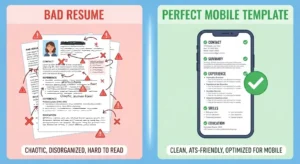
When deciding how to create a cv on iphone, selecting the right template is arguably the most critical step in the entire process. While the App Store is flooded with flashy resume-building applications promising visually stunning designs, you must exercise extreme caution. Highly graphical templates featuring complex columns, embedded photos, or colorful infographics often fail dramatically when processed by an Applicant Tracking System (ATS).
These automated parsing systems are designed to read simple text from left to right and top to bottom. If you use a multi-layered mobile template, the ATS might scramble your work history or completely miss your contact information. To avoid this fatal error, opt for clean, single-column templates available natively within Apple Pages or Microsoft Word for iOS.
These standard templates are built using traditional tables and paragraph styles that translate perfectly into parsed data. Look for a design that uses generous white space, clear section headers, and standard professional fonts like Helvetica, Arial, or Times New Roman.
Remember, the goal is not to win an art contest; the goal is to deliver your career metrics into the recruiter’s hands as cleanly and efficiently as possible. A minimalist mobile template guarantees that your professional narrative takes center stage without technical interference.
Step-by-Step Guide: Building Your CV in Apple Pages
Apple Pages remains the undisputed champion for mobile document creation due to its deep integration with the iOS ecosystem. If you want to master how to create a cv on iphone, learning the nuances of this specific application is absolutely non-negotiable. Begin by opening the Pages app and tapping the plus icon in the top right corner to create a new document.
You will be greeted by Apple’s extensive template chooser. Scroll down to the “Resumes” section and select a standard, text-heavy layout. Once the template loads, resist the urge to immediately start typing. Instead, familiarize yourself with the formatting ribbon located just above the virtual keyboard.
This toolbar is your command center for adjusting text styles, inserting lists, and managing layout boundaries. Before pasting any content, tap on the paintbrush icon at the top of the screen to access the document setup menu. Here, you must ensure that your paper size is set correctly—usually US Letter for North American jobs or A4 for international roles.
Taking these few minutes to configure the digital canvas prevents catastrophic formatting errors later on. When your foundation is solid, you are ready to begin constructing your professional profile piece by piece.
Setting Up Margins and Typography on a Small Screen
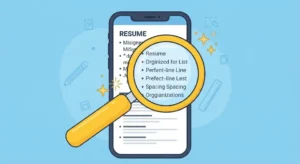
Operating on a compact touch screen requires a fundamentally different approach to document layout than using a traditional desktop monitor. When setting up your document in Pages or Word, your margins must strike a delicate balance. You want to maximize the available space to keep your resume on a single page, but you cannot push the text too close to the edge.
A safe, industry-standard margin is between 0.5 inches and 1 inch on all sides. Adjusting this on an iPhone involves opening the document setup options and dragging the margin indicators until you hit the perfect sweet spot. Equally important is your careful choice of document typography.
On a mobile device, a font might look legible, but you must remember that recruiters will likely view the final PDF on a massive desktop monitor. Select a highly readable, professional font like Garamond, Calibri, or Roboto. Set your standard body text to a minimum of 10 or 11 points.
Make your section headers stand out prominently at 14 to 16 points. Consistent typography across your entire document projects an image of meticulous attention to detail, which is highly prized by elite hiring managers.
Pasting and Formatting Your Pre-Written Content
Now that your digital canvas is perfectly calibrated, it is time to leverage the raw data you prepared earlier. Switching between your Notes app and your word processor is remarkably seamless on modern iOS devices. Highlight your pre-written contact information, copy it, and paste it directly into the designated header.
When pasting, iOS often asks if you want to “Paste and Match Style.” Always select this option to ensure your incoming text instantly adopts the font and sizing rules of your carefully chosen template. Move methodically through your document, transferring your professional summary, chronological work experience, and educational background.
It is highly recommended to utilize iOS multitasking gestures or the universal clipboard feature if you are pulling data from a nearby iPad or Mac. This makes the entire assembly process exponentially faster.
As you paste your bullet points, double-check that the action verbs are bolded if that is your chosen visual style. Ensure the dates align perfectly on the right-hand side of the page. This compartmentalized approach guarantees that you do not accidentally delete crucial formatting elements while migrating your data.
Overcoming Common Mobile CV Formatting Glitches
Even with the most careful preparation, learning how to create a cv on iphone inevitably involves troubleshooting a few frustrating formatting glitches. The touch interface, while incredibly intuitive, can sometimes be overly sensitive, leading to accidental line breaks, unintended indentations, or sudden shifts in paragraph alignment.
One of the most common red flags for HR professionals is receiving a resume where the margins randomly change halfway down the page, or where the font size drops dramatically just to squeeze in an extra sentence. To avoid these fatal visual errors, you must learn to navigate the hidden formatting menus.
If a paragraph suddenly misaligns, highlight the affected text, open the paragraph formatting tab, and reset the indents to zero. Do not try to fix alignment issues by repeatedly tapping the spacebar. This “spacebar formatting” will instantly break when the document is exported or parsed by an ATS.
Instead, always use the native tab stops or alignment tools provided by the mobile application. By treating your mobile word processor with the same technical respect as a desktop application, you can bypass the amateur mistakes that disqualify countless mobile-generated applications.
Fixing Bullet Point Alignment and Spacing Issues
Bullet points are the structural backbone of any highly effective professional resume, allowing busy recruiters to rapidly scan your core achievements. However, managing bullet point lists on a touch interface can be notoriously tricky. Often, when you hit “return” on your virtual keyboard, the application might misbehave.
It may apply excessive line spacing, making your document visually disjointed and artificially lengthening your resume onto an unnecessary second page. To fix this common mobile glitch, highlight your entire bulleted list, navigate to the line spacing menu, and manually set the spacing to a consistent 1.0 or 1.15.
Furthermore, ensure the indent spacing between the bullet symbol and the first letter of your text is uniform throughout the entire document. If you notice a rogue bullet point hanging too far to the right, do not try to manually backspace it.
Instead, highlight the list and re-apply the native bullet styling from the main toolbar. Clean, perfectly aligned bullet points are non-negotiable; they visually communicate your organizational skills and your commitment to producing high-quality deliverables.
Ensuring Your Hyperlinks Work Perfectly on PDF Export
In the modern digital hiring landscape, submitting a purely static document is no longer sufficient. Your resume must act as a gateway to your broader professional presence, which means incorporating active, clickable hyperlinks to your LinkedIn profile, personal portfolio website, or GitHub repository.
When drafting on an iPhone, it is crucial to ensure these links are formatted correctly so they remain active after you export the document. To insert a hyperlink in Apple Pages or Word, highlight the descriptive text, tap the selection once more to bring up the context menu, and select “Add Link.”
Paste the full URL into the provided field and verify that it directs to the correct page. Never paste raw, ugly URLs directly into the document body; always use clean, descriptive anchor text. Before finalizing your document, it is extremely wise to review official mobile hyperlink guidelines.
This ensures seamless compatibility across various applicant reading software. Once your links are embedded cleanly, you eliminate friction for the recruiter, allowing them to instantly access your expanded professional portfolio with a single tap from their own device.
Exporting and Saving Your iPhone CV as a PDF Document
After meticulously drafting and formatting your professional profile, you reach the most crucial technical stage of the entire process: exporting the final file. Knowing how to create a cv on iphone is ultimately useless if you cannot deliver the document in a secure, universally readable format. This is where mastering the iOS export ecosystem becomes an absolute necessity for modern job seekers.
Many mobile applicants mistakenly leave their documents within the native app environment, assuming they can simply share a collaborative iCloud link or Google Drive permission with the hiring manager. This is a catastrophic error that will almost certainly result in immediate disqualification. Recruiters do not have the time to request access permissions or navigate clunky mobile web viewers.
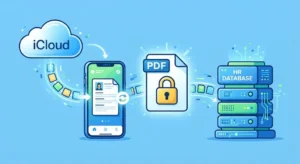
You must actively transform your live, editable draft into a locked, static file. The Portable Document Format (PDF) is the undisputed gold standard of the corporate world. It is the only format that guarantees your carefully chosen margins, custom typography, and perfectly aligned bullet points will look exactly the same on the recruiter’s monitor as they do on your smartphone screen.
Furthermore, PDFs offer a lightweight file size without sacrificing textual clarity. This makes them ideal for quick uploading over cellular data networks when you are applying on the go. Taking the extra twenty seconds to properly export your work ensures your professional narrative is preserved and protected.
Why You Must Never Send a Word or Pages Document
There is a pervasive myth among amateur job seekers that submitting an editable Microsoft Word document (.docx) or an Apple Pages file (.pages) is acceptable. In reality, sending these raw file types is a massive gamble that frequently destroys your chances of securing an interview. The primary issue stems from software version discrepancies and operating system conflicts.
If you create a stunning resume using native Apple fonts on your iPhone, and the HR director opens that exact file on an older Windows PC, their software will attempt to substitute missing fonts. This auto-correction process brutally mangles margins, pushes single-page resumes onto two pages, and turns clean bullet points into chaotic, unreadable symbols.
Additionally, editable documents leave your data vulnerable to accidental keystrokes. A recruiter rapidly clicking through applications could unknowingly delete a digit from your phone number or alter a crucial date in your employment history. Sending an editable file reflects a severe lack of technological awareness.
By locking your document as a PDF, you maintain absolute control over your personal brand. You eliminate the variables of third-party hardware and software, ensuring that your first impression is exactly as polished and professional as you intended it to be during the creation phase.

Step-by-Step PDF Export in iOS Files App
The actual mechanism of generating a PDF on your smartphone is highly intuitive once you know where the commands are hidden. If you are operating within Apple Pages, tap the three dots (More icon) located in the upper right corner of your screen. From the dropdown menu, select the “Export” option.
A list of file formats will appear; tap “PDF.” The application will quickly process your layout and open the iOS Share Sheet. Here, you must choose “Save to Files.” Do not immediately send it to an email address; you want a master copy saved locally. Select a designated folder within your iCloud Drive for easy retrieval.
Before hitting save, you must pay critical attention to the document’s name. Applicant Tracking Systems parse file names just like they parse document text. You should follow best file naming conventions to ensure your application stands out professionally. Never use generic titles like “Resume_Final_v2.pdf”.
Instead, tap on the generated filename and cleanly rename it using the format: “Firstname_Lastname_Resume.pdf”. Adding the specific job title you are applying for is an excellent bonus (e.g., “John_Doe_Marketing_Manager.pdf”). This level of digital hygiene drastically improves your visibility and keeps your file organized in the recruiter’s downloads folder.
How to Send Your Mobile CV Directly to Recruiters
With your flawlessly formatted PDF safely stored in your iCloud Drive, the final hurdle is the actual submission process. The agility of mobile document creation means you can act upon a job posting within minutes of its publication. However, speed must be paired with precision during the final delivery phase.
If you are applying through a direct email pitch, the native iOS Mail app or the Gmail app provides a seamless attachment experience. When drafting your professional cover email, clearly state the position you are applying for in the subject line. Ensure your email signature is clean and devoid of distracting “Sent from my iPhone” default text.
Alternatively, you may be navigating a corporate careers portal via the mobile Safari browser. Modern ATS platforms like Workday, Greenhouse, or Lever are heavily optimized for mobile browsers. When prompted to upload your resume, simply tap the “Choose File” button, select “Browse,” and navigate directly to your properly named PDF within the Files app.
This direct pipeline eliminates the need to ever touch a desktop computer. You have successfully identified an opportunity, drafted a customized application, formatted it flawlessly, and submitted it directly into the HR database, all while remaining entirely mobile. This is the hallmark of a truly agile professional.
Watch this complete masterclass on building perfect mobile resumes: :
Attaching PDFs to Emails and LinkedIn Applications
Applying through professional networking platforms like LinkedIn is incredibly fast when utilizing a mobile device. The LinkedIn iOS application features an “Easy Apply” function that allows you to submit your credentials with just a few screen taps. However, you must ensure you are uploading your freshly created PDF, not an outdated file saved to your profile years ago.
When the prompt asks for your resume, tap “Upload Resume” and immediately navigate to your iCloud Drive folder. Select your newly customized PDF. Before hitting submit, take a final glance to confirm the filename is professional and accurate to the role you are targeting.
For cold outreach via email, the attachment process is equally critical. Open your Mail app, draft your message, and tap the small paperclip or document icon hovering above the keyboard. Browse to your specific file and attach it. Wait for the blue progress bar to complete fully before tapping send.
Always double-check that the attachment has successfully loaded into the email body. A common mistake among mobile users is accidentally sending an email before the cellular connection finishes uploading the PDF, resulting in an embarrassing follow-up message to the hiring manager. Patience during this final step is paramount.
Frequently Asked Questions About Mobile Resume Creation
As the modern workforce increasingly shifts toward mobile-first productivity, countless job seekers encounter the same recurring doubts and technical challenges. Breaking away from the traditional desktop computer model requires a shift in mindset, and it is natural to have questions regarding compatibility and performance.
One common concern revolves around creating supplemental documents. Applicants frequently wonder if they can manage their entire application packet from their smartphone. The answer is a resounding yes. You can easily learn how to write a cover letter using the exact same Pages or Word templates, exporting it as a matching PDF companion to your resume.
Another frequent inquiry relates to updating existing files. If you already have a desktop-created resume stored in a cloud service like Google Drive or Dropbox, you can absolutely open, edit, and re-export it directly from your iPhone without destroying the original formatting, provided you use the corresponding mobile application (e.g., Google Docs for Drive files).
Ultimately, understanding the robust capabilities of your iOS device transforms it from a simple communication tool into a powerful, agile career management platform. By embracing these mobile workflows, you guarantee that you are always prepared to seize the perfect opportunity the moment it arrives.
Can Applicant Tracking Systems (ATS) Read Mobile Resumes?
The most persistent fear among applicants is that a resume generated on a mobile device will somehow trigger a silent rejection from automated screening software. This fear is largely unfounded, provided you follow the strict formatting and exporting rules detailed throughout this masterclass. An ATS does not care what brand of computer or smartphone was used to generate the document.
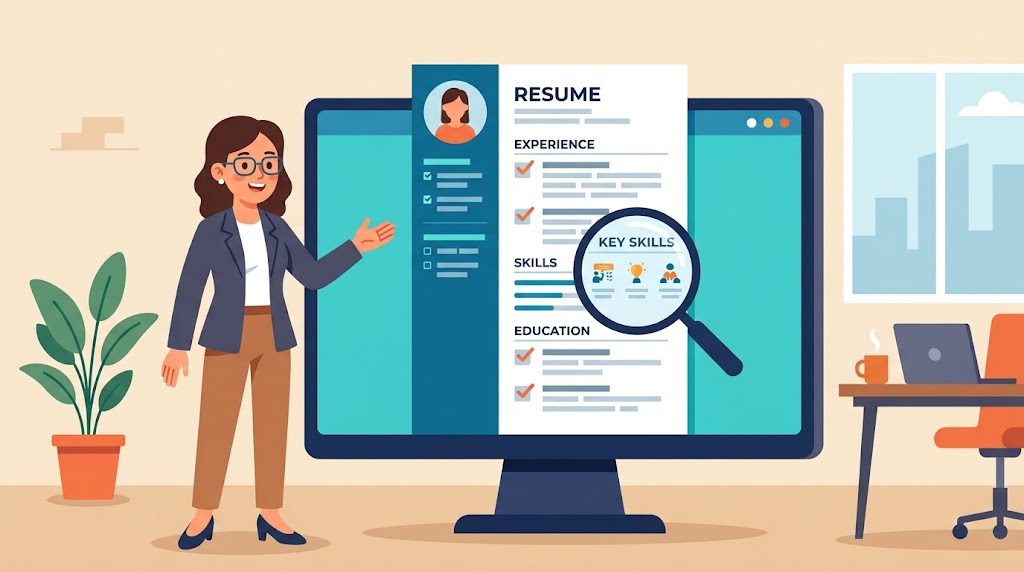
Applicant Tracking Systems are essentially text-parsing robots. They strip away visual design and extract raw data like job titles, dates, contact information, and specific industry keywords. If your mobile-generated resume utilizes a clean, single-column template with standard fonts and is exported as a standard PDF, the ATS will read it flawlessly.
The only time an ATS fails to read a mobile resume is when the user attempts to construct overly complex tables, embeds non-standard icons, or uses aggressive multi-column layouts that confuse the top-to-bottom reading logic of the software. Simplicity is your greatest asset.
By focusing on dense, keyword-rich bullet points and utilizing native Apple Pages or Word templates, your iPhone becomes an ATS-beating powerhouse. You deliver exactly what the algorithm wants—clean, structured data—delivered faster than your desktop-bound competition.


Leave a Reply